Computer Use Agents: What They Are and Which One to Use (2026)
 Maximin
- Published
- 5 min read
- 5 min read
Key takeaways
- A computer use agent is an AI that sees the screen through screenshots, then moves the mouse and types on the keyboard to do a task.
- It works in a loop: screenshot, decide, act, new screenshot, until the task is done.
- For everyday tasks: ChatGPT has computer use in its desktop app, and Claude has it in beta in Claude Desktop for Pro, Max, and Ultra.
- For developers: Anthropic, OpenAI, and Google all offer a computer use tool in their APIs, to run in a sandboxed machine.
- It is slow and can make mistakes, so use a connector or a website first, and keep computer use for apps with neither.
Let an AI agent do your boring tasks
The free guide has the setup, 4 real tasks, and ready-to-copy prompts.
Get the free guideWhat is a computer use agent?
A computer use agent is an AI that uses a computer the way you do. It doesn't need an API or a plugin for each app: it looks at the screen, finds the button, and clicks it. That means it can work in almost any app, even an old one with no connector.
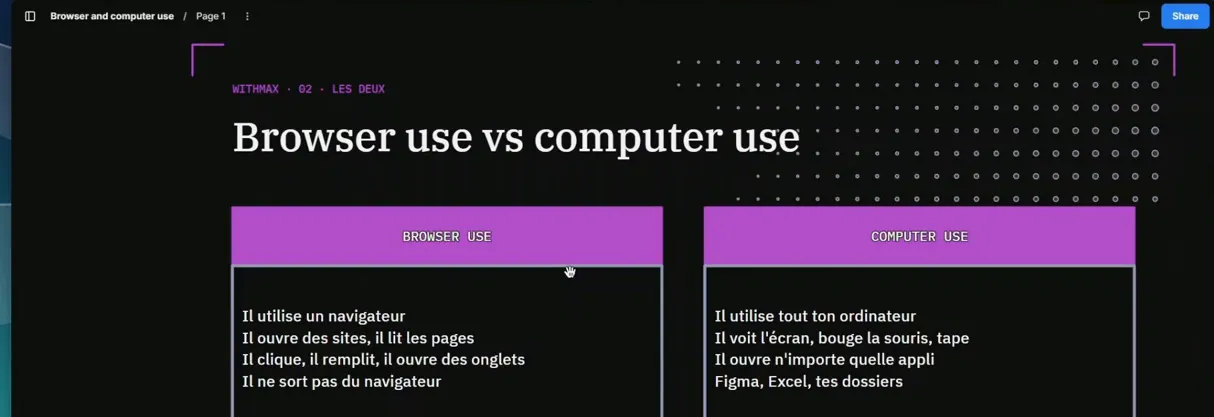
A browser use agent does the same thing, but only inside a web browser. A computer use agent can also open the apps installed on your computer, like Excel, Figma, or OBS.
How a computer use agent works
Every computer use agent runs the same agent loop:
- It takes a screenshot to see what is on the screen.
- It decides the next action: click here, type this, scroll down.
- The action runs on the computer: the mouse moves, the keys are pressed.
- It takes a new screenshot to check the result, and starts again until the task is done.
This is why it is slow: it looks before every action. Anthropic's docs also warn that the model can pick the wrong spot on the screen when it clicks, and that scrolling can fail.
The computer use agents you can use today
| Agent | Where it runs | Who can use it |
|---|---|---|
| ChatGPT computer use | On your computer, in the ChatGPT desktop app | Turn it on in Settings → Computer use |
| ChatGPT Work and the cloud browser | Web tasks on a computer in OpenAI's cloud | Paid ChatGPT plans for the cloud browser |
| Claude computer use | On your computer, in Cowork and Claude Code in Claude Desktop (Mac and Windows) | Beta, for Pro, Max, and Ultra |
| Claude computer use tool (API) | In your own sandboxed machine | Developers using the Claude API |
| OpenAI computer tool (API) | In your own browser or virtual machine | Developers using the Responses API |
| Gemini computer use (API) | Browser, mobile, and desktop agents you build | Developers using the Gemini API |
ChatGPT: computer use in the desktop app
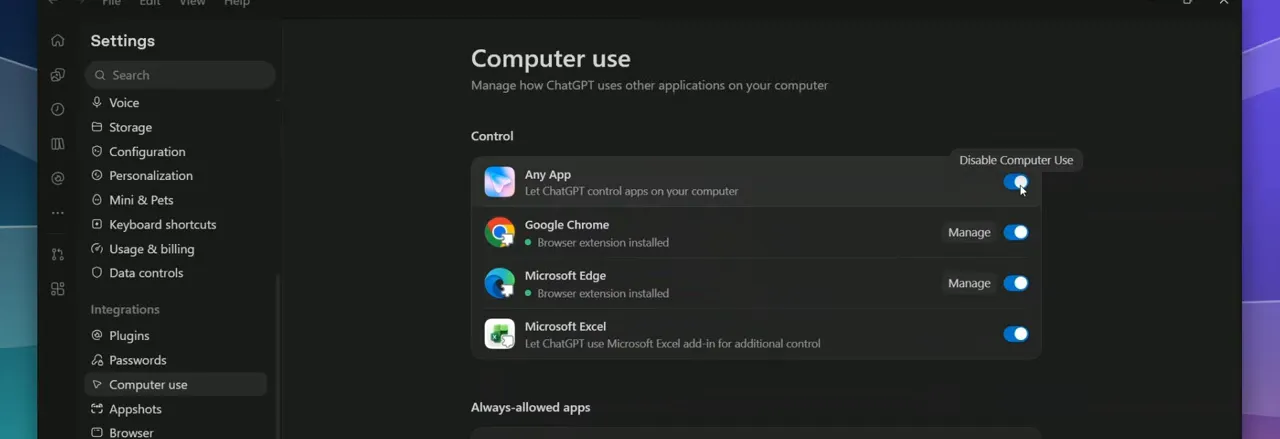
This is the easiest one to try. In the ChatGPT desktop app, open the settings, click Computer use, and choose which apps it can control. I tested it on 4 real tasks, from Notion to the Figma app, in ChatGPT computer use vs browser use. ChatGPT's old agent mode is gone: see what replaced ChatGPT agent mode.
Claude: computer use in Claude Desktop
Anthropic's help center says computer use is in beta for Pro, Max, and Ultra plans, in Cowork and Claude Code inside the Claude Desktop app, on macOS and Windows. Claude asks your permission before it uses each app.
For developers: the API tools
Anthropic, OpenAI, and Google each have a computer use tool in their API. The model sends back actions, your code runs them in a machine you control and returns a new screenshot. All three tell you to run it in a sandboxed virtual machine or container, and Anthropic and Google publish a Docker reference setup.
// Claude API
{ "type": "computer_toolset_20260801" }

// OpenAI Responses API
{ "type": "computer" }

// Gemini API
{ "type": "computer_use", "environment": "browser" }
Computer use agent risks and how to stay safe
The biggest risk is prompt injection: a page or a document can hide text that tells the agent to do something you never asked, like sending your data somewhere. Anthropic, OpenAI, and Google all give the same advice:
- Treat what is on the screen as untrusted. The agent should not follow instructions it reads on a page.
- Keep it in a separate space: a virtual machine or a container with few rights, for API agents.
- Don't give it your passwords or sensitive data. Log in yourself when it asks.
- Confirm important actions yourself: anything that sends, pays, deletes, or publishes.
- Limit where it can go, for example with a list of allowed websites.
When to use a computer use agent
In my tests, ChatGPT computer use was slow, stopped halfway sometimes, and asked me before every important decision. That is fine for a task you don't want to do, but it is not the fastest way. Follow this order:
- A connector exists for the app (Notion, Canva, Figma)? Use it: it is faster and more reliable.
- No connector, but a website? Use a browser use agent.
- No connector and no website? Now use a computer use agent.

Get the free guide
Every prompt from my 4 tests, plus 10 everyday tasks to hand to a computer use agent.
Download the guideFrequently asked questions
What is a computer use agent?
An AI that sees the screen through screenshots and uses the mouse and keyboard to do a task. It can work in almost any app, even one with no API.
What is the difference between computer use and browser use?
Browser use only works inside a web browser. Computer use can also open and use the apps installed on your computer.
Can Claude use my computer?
Yes, in beta. Computer use is available in Cowork and Claude Code in Claude Desktop on Mac and Windows, for Pro, Max, and Ultra plans. Claude asks before it uses each app.
Is a computer use agent safe?
It can be tricked by hidden text on a page, which is called prompt injection. Give it only the apps it needs, never your passwords, and approve anything that sends or pays yourself.
Which computer use agent is best?
For everyday tasks, start with the one in the chat app you already pay for: ChatGPT or Claude. For your own product, pick the API of the model you already use.
About the author
 Maximin
I’m a software engineer, and I help businesses and individuals turn their ideas into real projects with AI agents.